
How to Install Google Tag Manager: Step-by-Step Guide (With Screenshots)
On this page
When I launched shikha.io in October 2026, Google Tag Manager was the first tool I installed, before Analytics, before Clarity, before anything else. Here is exactly how I did it, every screen annotated, plus how to share access, track events and add schema markup.
Key takeaways
- Google Tag Manager is the only tracking code that should live in your website. GA4, Clarity, ad pixels and events all go inside it.
- Always create Tag Manager under your own business Google account, then share access with your agency or developer. Never the other way round.
- Saving is not publishing. Nothing goes live until you click Submit, then Publish.
- Use "All Pages" for tools that should run everywhere, and a page-specific trigger for events on one landing page or thank-you page.
Tested on shikha.io, October 2026. Every screenshot below is from that setup, with IDs blurred.
What is Google Tag Manager (GTM)?
GTM, also known as Google Tag Manager, is a free tool from Google that lets you add and manage all your website tracking codes from one place, without editing your website every time.
Think of it as a box you install on your website once. Google Analytics, Microsoft Clarity, the Meta and LinkedIn pixels, conversion tracking and even schema markup all go inside that box. When you want to add, change or remove one, you do it in Tag Manager, and your website code stays untouched.
A few words you will see inside Tag Manager:
Account Your company
One per business. It holds your containers.
Container Your website
One per website. This is the box that holds all your tags. Its ID looks like GTM-XXXXXXX.
Tag What to run
A piece of tracking, for example "send a pageview to GA4" or "load Clarity".
Trigger When to run it
The rule that fires a tag, for example "on every page" or "when someone clicks Book a call".
Workspace Your draft
Where your changes wait until you publish them. Nothing in the workspace is live yet.
5 key benefits of using Google Tag Manager
- One code on your website, forever. You paste Tag Manager once. Every future tool goes in through it, so you stop asking a developer to edit the site.
- Changes in minutes, not tickets. Adding a pixel for a new campaign or tracking a new button takes a few clicks, not a website release.
- Test before anything goes live. Preview mode shows exactly which tags fire on which page before your visitors see a single change.
- An undo button for tracking. Every publish is saved as a version. If something breaks, you go back to the last working version in one click.
- Control over who can do what. You decide who can only view, who can edit, and who can publish, user by user.
What you can do with Google Tag Manager
These are the jobs I use Tag Manager for on almost every client website:
- Install analytics: GA4 and Microsoft Clarity, without touching the site code.
- Track conversions as events: form submissions, "Book a call" clicks, WhatsApp clicks, phone number taps and file downloads.
- Add ad pixels: the Meta pixel, LinkedIn Insight Tag and Google Ads conversion tracking, only on the pages that need them.
- Add schema markup: structured data that helps Google understand a page, added through a tag when you cannot edit the page code.
- Track engagement: how far people scroll and which links they click.
Before you start: 3 things to have ready
- A Google account your business owns. Use the company account, not a personal one from a freelancer or agency. More on why in Step 3.
- Access to your website. Either the site code, or admin access to your website platform (WordPress, Wix, Shopify, Webflow, Squarespace).
- 10 minutes. No coding knowledge needed.
Step 1: Create your Tag Manager account and container
- Go to tagmanager.google.com and sign in with your business Google account.
- Click Create Account.
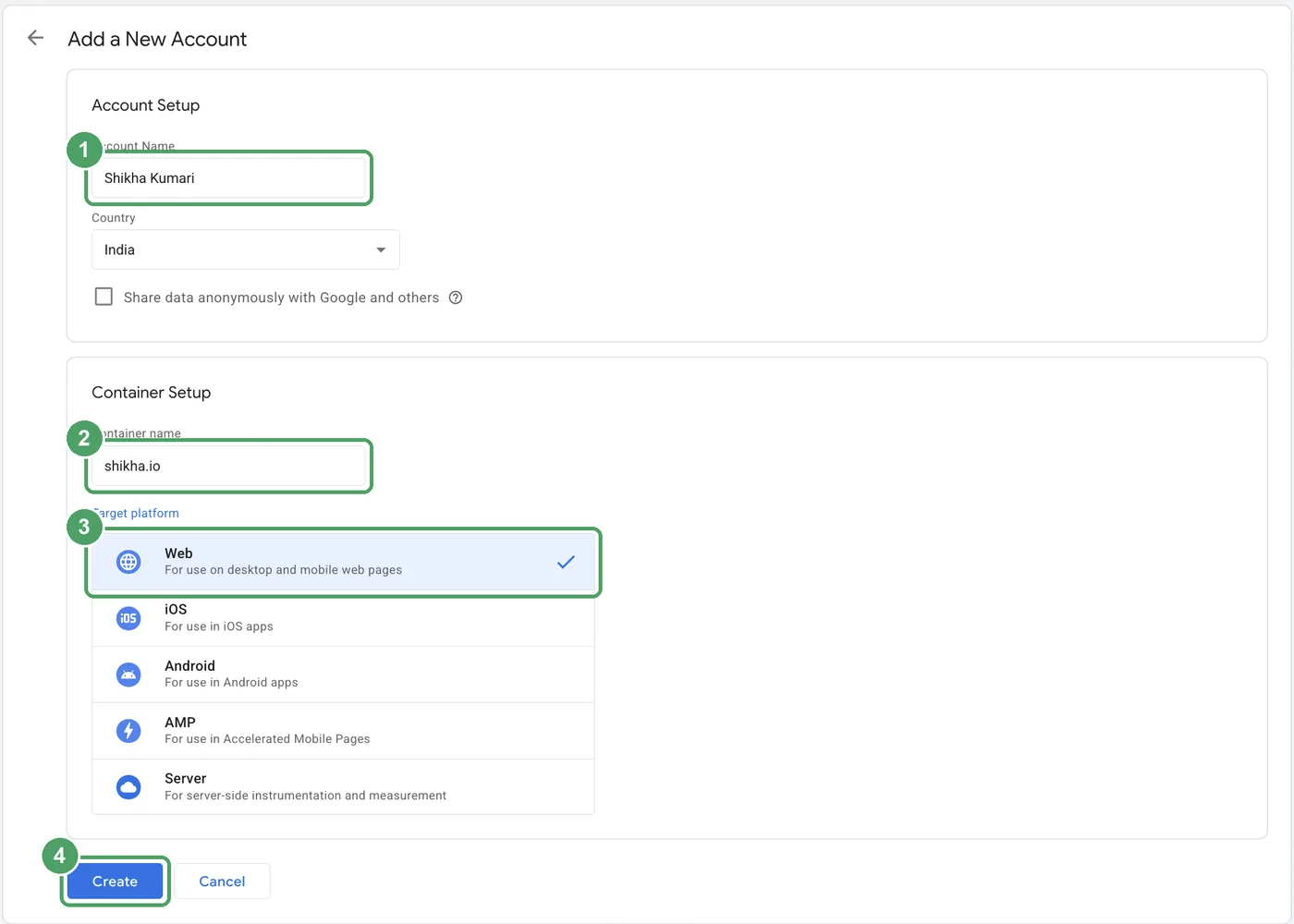
- Under Account Setup, enter your Account name (your business name) and choose your Country.
- Under Container Setup, enter your Container name (your domain, for example
shikha.io) and choose Web as the target platform. - Click Create and accept the Google Tag Manager terms of service.
Step 2: Add the 2 codes to your website
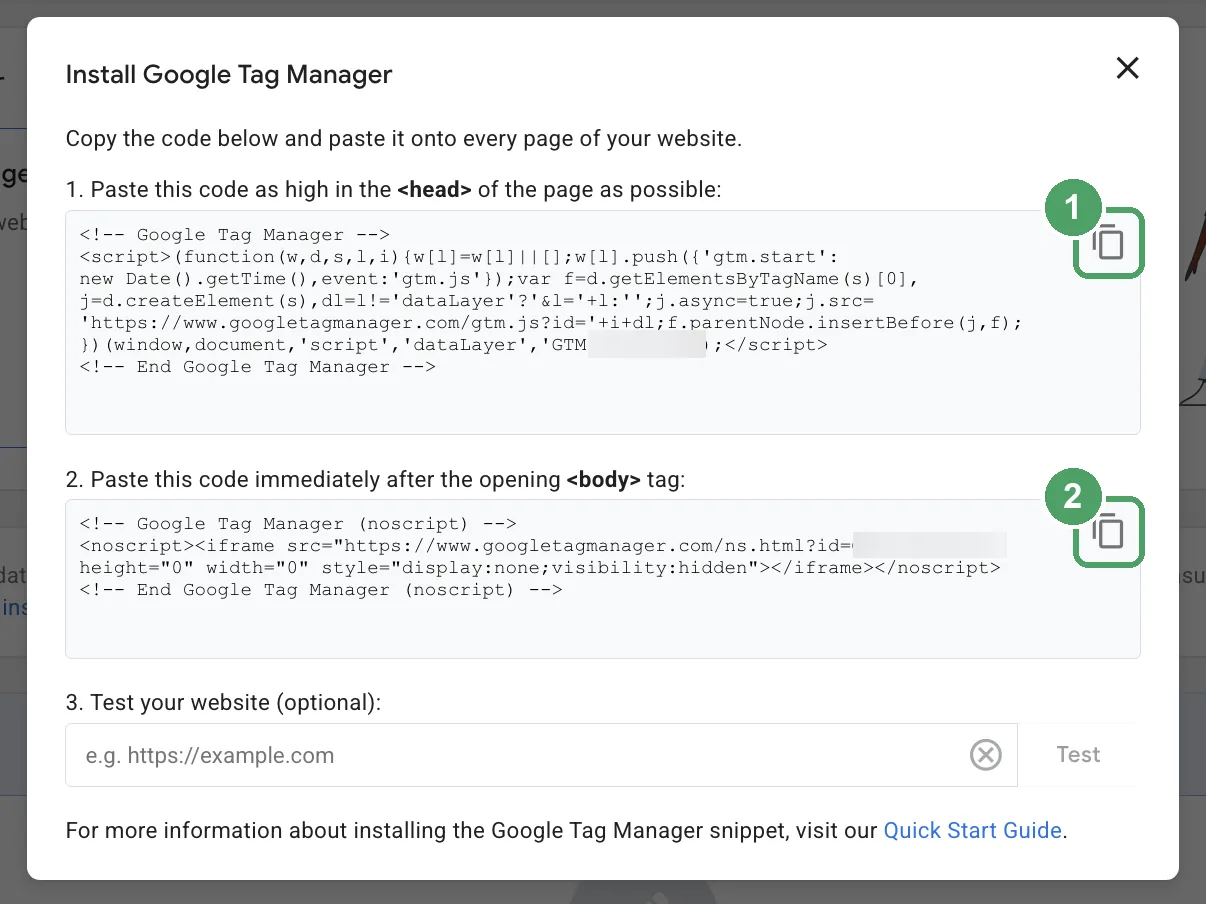
After you create the container, Tag Manager shows a box with 2 pieces of code. Your container ID, which looks like GTM-XXXXXXX, is also at the top of the page.
Option A: Paste the code yourself
- Copy the first piece of code and paste it as high as possible inside the
<head>of every page. - Copy the second piece and paste it right after the opening
<body>tag on every page. - Publish your website.
This is how I installed it on shikha.io. In the page code it looks like this, with your own ID in place of GTM-XXXXXXX:
<head>
  <!-- Google Tag Manager -->
  <script>(function(w,d,s,l,i){ ... })(window,document,'script','dataLayer','GTM-XXXXXXX');</script>
  <!-- End Google Tag Manager -->
  ...
</head>
<body>
  <!-- Google Tag Manager (noscript) -->
  <noscript><iframe src="https://www.googletagmanager.com/ns.html?id=GTM-XXXXXXX" ...></iframe></noscript>
  ...
Option B: Use your website platform
| Platform | How to add Tag Manager |
|---|---|
| WordPress | Install Google's Site Kit plugin, then go to Site Kit, Settings, Connect More Services, Set up Tag Manager. Pick your account and container and click Complete setup: Site Kit places both codes for you. If GA4 lives inside Tag Manager, do not also connect Analytics in Site Kit, or visits are counted twice. Never paste the code into your theme's header.php: a theme update wipes it. |
| Wix | Dashboard, then Marketing Integrations, then Google Tag Manager, then Connect, and paste your GTM ID. Needs a Premium plan and a connected domain. |
| Shopify | For GA4 and Google Ads, Google recommends its Google & YouTube app instead. Tag Manager on Shopify works through a custom pixel, which Google does not fully support. Treat it as an advanced setup. |
| Webflow | Site settings, then Custom code: paste the first code in Head code, save and publish. The Footer code box loads at the end of the page, so for the second code add an HTML Embed as the very first element on the page and reuse it on every page. Needs a paid site plan. |
| Squarespace | Open the Code Injection panel in your site settings: paste the first code in Header and the second in Footer. Not available on the Personal or Basic plans. |
Tag Manager is the only tracking code that lives in your website. Once it is in, GA4, Clarity and pixels all go inside Tag Manager. Never paste GA4's own code on the site as well, or every visit is counted twice.
Step 3: Share access, and keep ownership
Always create Tag Manager under your own business account, as in Step 1. Then give your agency, developer or marketing team access as users. If someone else creates it on their login, the tracking on your website belongs to them, and you lose it the day you stop working together.
How to add a user
- In Tag Manager, click Admin at the top.
- In the Container column, click User Management. (To give someone access to the whole account instead, use User Management in the Account column.)
- Click the blue + button at the top right, then Add users.
- Enter their email address.
- Choose their Container permissions (see the table below).
- Click Invite. They get an email and accept the invitation.
Which role to give whom
| Who | Account permission | Container permission | What they can do |
|---|---|---|---|
| You, the business owner | Admin | Publish | Everything, including adding and removing users |
| Your SEO or marketing agency | User | Publish | Add tags and make them live, but not manage users |
| A developer or junior team member | User | Edit | Build and change tags in a workspace, but not publish |
| A reviewer who signs off changes | User | Approve | Edit and create versions for review, but not publish |
| Someone who only needs to look | User | Read | See tags, triggers and settings, change nothing |
When a contract ends, go back to User Management and remove that user. Your tags, history and data all stay with you. Google's permissions guide has the full detail.
Step 4: Understand the workspace: saving is not publishing
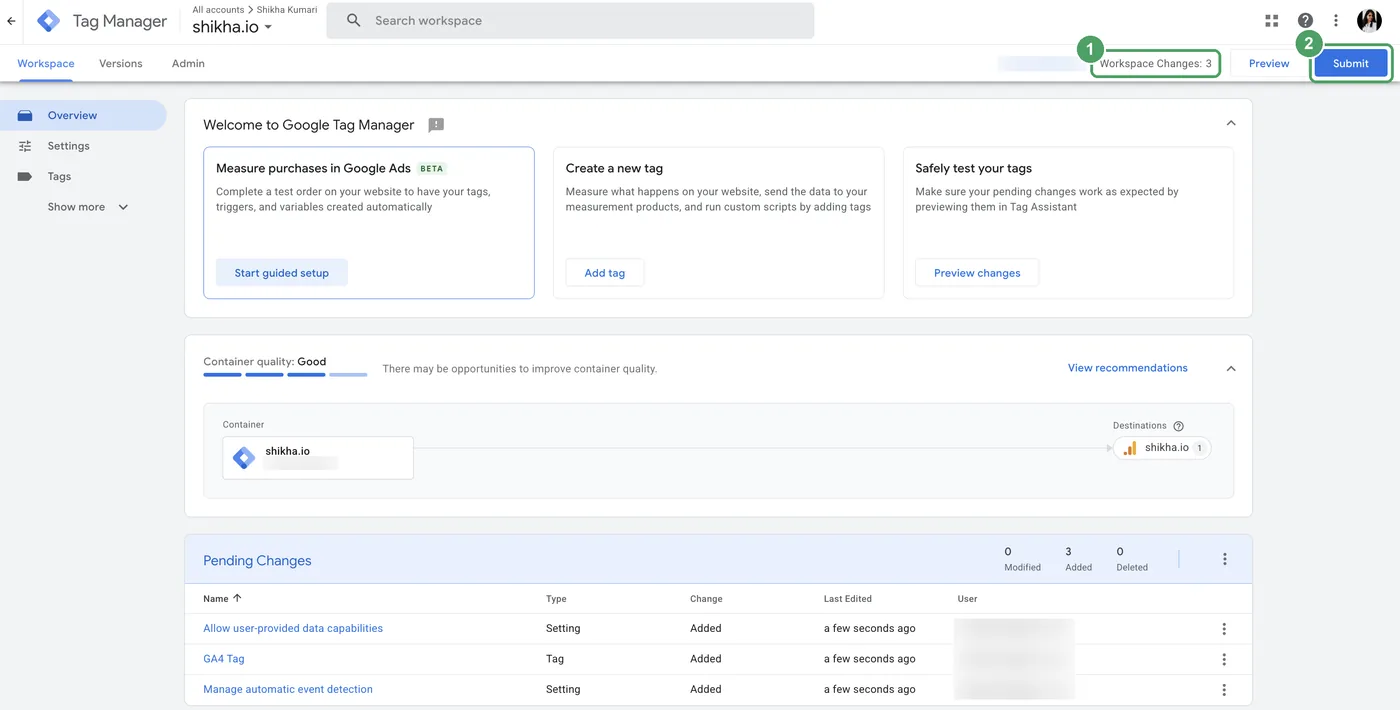
Everything you change in Tag Manager first goes into your workspace, a draft. Your website does not change until you publish. This is the most common reason I find tracking "installed" but not working: the tag was saved, never published.
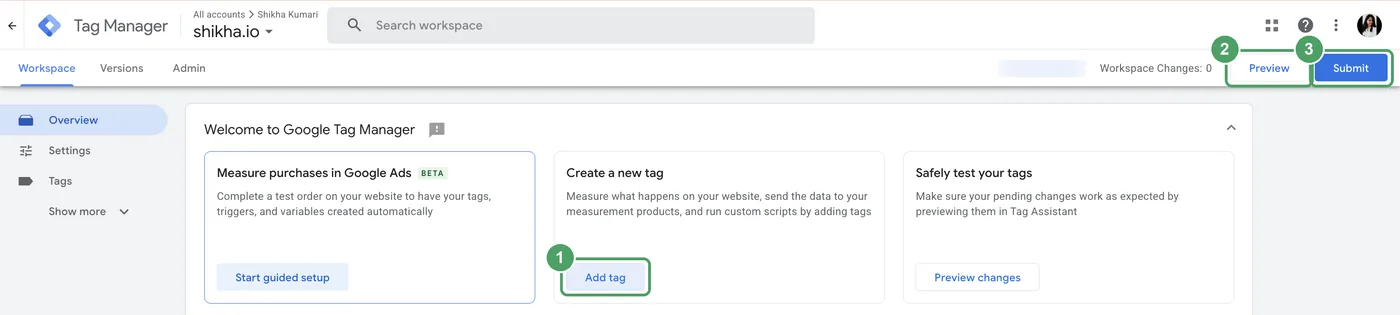
Watch the counter at the top. "Workspace Changes: 0" means everything is live. Any number above 0 means you have changes waiting that your visitors cannot see yet.
Step 5: Add tags and choose the right trigger
A tag is what runs. A trigger is when it runs. Getting the trigger right matters as much as the tag.
When to use All Pages
Use Initialization - All Pages for tools that should run on every page of your website from the first moment: GA4, Microsoft Clarity, and your consent banner. This is the trigger I used for both on shikha.io.
When to use a specific page
Use a page-specific trigger when a tag should run only on one page or landing page. For example:
- A conversion that counts only when someone reaches your thank-you page after a form.
- A LinkedIn or Meta pixel that should run only on your campaign landing page.
- Schema markup that belongs to one page only.
To set it up: Triggers, New, choose Page View, select Some Page Views, and set the condition Page Path equals your page, for example /thank-you/. Save it, then pick this trigger in your tag instead of All Pages.
Example: add GA4 in 4 clicks
- Click Add tag (or Tags, then New).
- Choose the tag type Google Tag and paste your GA4 Measurement ID (
G-XXXXXXXXXX) as the Tag ID. - Choose the trigger Initialization - All Pages.
- Name it "GA4" and click Save.
Some tools add themselves. When I installed Microsoft Clarity, it detected Tag Manager, asked me to pick the container, and created and published its own tag in one click. The full walkthrough is in my guide to the 5 website tracking tools.
Step 6: Preview, then publish
Preview first
- Click Preview at the top right of Tag Manager.
- Enter your website address and click Connect. Your site opens in a new tab with Tag Assistant connected.
- In the Tag Assistant tab, check that your tags are listed under Tags Fired. Click around your site to test click and page-specific triggers.
Google's preview and debug guide explains every panel.
Then publish
- Click the blue Submit button at the top right.
- Give the version a clear name, like "Add GA4" or "Book a call event". Tag Manager can suggest one for you.
- Click Publish.
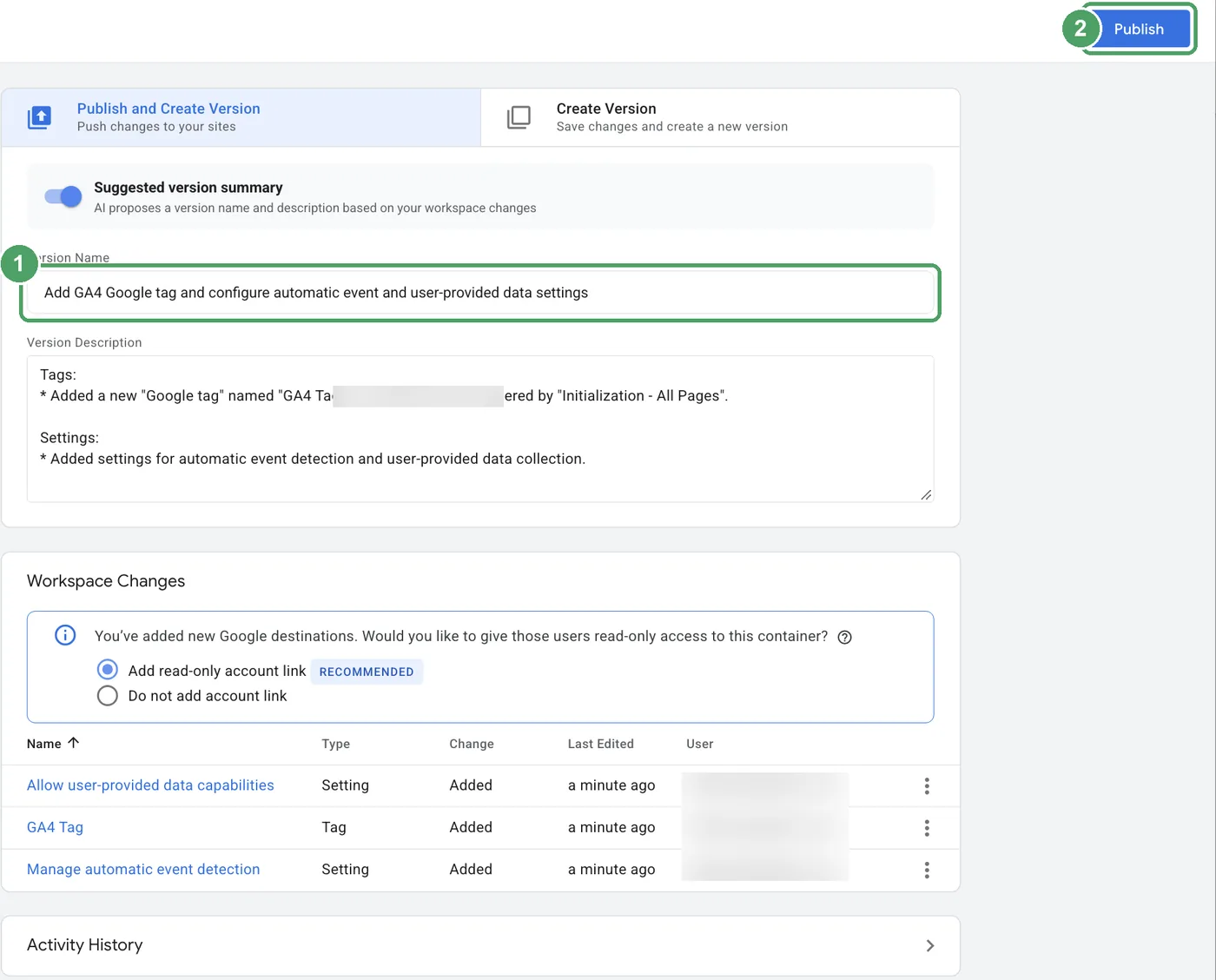
Each publish becomes a numbered version under Versions. If a change breaks something, open the last working version and publish it again. That is your undo button.
How to create an event in Google Tag Manager (button clicks and forms)
An event is an action you want to count, like a click on "Book a call". Here is the setup I use, with GA4 already installed through Tag Manager.
1. Switch on click variables (once)
- Go to Variables, then Configure under Built-In Variables.
- Tick Click Text, Click URL, Click ID and Click Classes.
2. Create the trigger
- Go to Triggers, New, and choose Click - All Elements (or Click - Just Links if the button is a link).
- Select Some Clicks and set a condition, for example Click Text equals Book a call.
- To count it only on one landing page, add a second condition: Page Path equals your page.
- Name it "Click - Book a call" and save.
3. Create the GA4 event tag
- Go to Tags, New, and choose Google Analytics: GA4 Event.
- Enter your Measurement ID and an Event name in lowercase with underscores, for example
book_call_click. - Choose the trigger you just made, and save.
- Preview to test the click, then Submit and Publish.
For a form, use the Form Submission trigger type in the same way, or count visits to your thank-you page with a page-specific trigger, which is more dependable on most websites.
Finally, tell GA4 this event is a lead: in GA4, go to Admin, Data display, Events, and mark book_call_click as a key event. It appears in that list once it has fired at least once, usually within 24 hours. Google's key events guide covers the details.
How to add schema markup with Google Tag Manager
Schema markup is structured data, a short block of code that tells Google exactly what a page is about: your business, an FAQ, a product, an event. The best place for it is the page code itself. When you cannot edit the page (common on locked themes and some website builders), Tag Manager can add it.
- Write your schema as JSON-LD. Google's documentation has examples for every type.
- In Tag Manager, go to Tags, New, and choose Custom HTML.
- Paste the schema inside a script tag, like this:
<script type="application/ld+json">
{
  "@context": "https://schema.org",
  "@type": "Organization",
  "name": "Your Business Name",
  "url": "https://yourdomain.com/"
}
</script>- Choose the trigger: All Pages for sitewide schema like your Organization, or a page-specific trigger (Page Path equals) for page schema like an FAQ.
- Preview, then Submit and Publish.
- Test the page in Google's Rich Results Test to confirm Google can read it.
The honest trade-off: Google reads schema added through Tag Manager, and its own documentation covers this method. But schema added by JavaScript is invisible to tools that do not run JavaScript, which includes many AI crawlers. If you can put schema in the page code, do that. Use Tag Manager when you cannot.
How to check Google Tag Manager is working (3 ways in 2 minutes)
- Page source: open your website, right-click, choose View Page Source, and search for
GTM-. You should find your container ID twice, once in the head and once in the body. - Preview: click Preview in Tag Manager and confirm your tags fire on the page.
- GA4 Realtime: visit your site on your phone using mobile data and watch yourself appear in GA4, Reports, Realtime, within a minute.
6 common Google Tag Manager mistakes
| Mistake | What happens | Fix |
|---|---|---|
| Saved but never published | Nothing tracks, though the tag "exists" | Check Workspace Changes is 0 after every change |
| GA4 code pasted on the site and added in Tag Manager | Every visit counted twice | Keep GA4 in Tag Manager only |
| Code added to the homepage only | Other pages are not tracked | Add it to the site template, so every page gets it |
| Code pasted into a WordPress theme file | Disappears on the next theme update | Use a plugin or a child theme |
| Tag on All Pages that belongs to one page | Inflated conversions and wrong data | Use a page-specific trigger |
| Account created by the agency | You lose tracking when the contract ends | Create it on your business account, share access |
Want Tag Manager set up properly, with your events and schema, on your business account? Book a 30-minute call.
Frequently asked questions
Is Google Tag Manager free?
Yes. Google Tag Manager is free for websites of any size. There is a paid version, Tag Manager 360, for large enterprises, but a business website does not need it.
Do I need coding skills to install Google Tag Manager?
No. You copy 2 pieces of code and paste them into your website once, or use your platform's built-in Tag Manager setting. After that, everything happens inside Tag Manager with forms and dropdowns.
What is the difference between Google Tag Manager and the Google tag (gtag.js)?
The Google tag is the code for Google products only, like GA4 and Google Ads. Tag Manager is a container that can hold the Google tag and any other tool. If you use Tag Manager, put GA4 inside it and do not paste the Google tag on your site as well, or every visit is counted twice.
Can I use Google Tag Manager with a Google Analytics plugin?
Only if the plugin is not also sending data to GA4. If both send pageviews, every visit is counted twice. Pick one: either the plugin or Tag Manager, never both.
Does Google Tag Manager slow down my website?
Tag Manager itself is light. What slows a site down is what you put inside it: every extra pixel and script adds weight. I cover the trade-off in why my own website was slow.
What about cookie consent?
If you have visitors from the UK or EU, use a cookie consent banner and turn on Google Consent Mode, so your tags respect each visitor's choice. Most consent banner tools have a ready-made Tag Manager template.
Who should own the Google Tag Manager account?
Your business, always. Create it with a Google account your company controls, then add your agency or developer as users. If the agency creates it on their own login, you lose your tracking the day the contract ends.
Install it once, then never touch your site code for tracking again
Tag Manager takes 10 minutes and saves you from a developer request every time you want to track something new. Create it on your business account, paste the code once, share access with the right roles, and remember that nothing is live until you publish.
Next, put Google Analytics 4 inside it. For the other 4 free tools every new website needs, read my guide to the 5 website tracking tools.
Posted in Website Setup
Want this done for you?
In 30 minutes I will check your Tag Manager setup, who owns it, and what it is tracking, and tell you what to fix first. No pitch.
Book a 30-minute call