
The 5 Most Important Website Tracking Tools for Traffic, Conversions and User Behaviour
On this page
I launched shikha.io in October 2026. Before I published a single blog post, I installed 5 free tracking tools. It took just 20 minutes.
Key takeaways
- Launching a website? Install these 5 free tools in launch week. GA4 and Clarity cannot record visits from before they were installed, so every day without them is data you never get back.
- Already have some tracking? Use the table and the setup-day check below to find what is missing or broken.
- Install them in this order: Google Tag Manager, Google Analytics 4, Search Console, Bing Webmaster Tools, Microsoft Clarity. Each step reuses the one before it.
- Most businesses earning 10L+ a month that I audit are missing at least 2 of these 5 tools.
Tested on shikha.io, 13 to 15 October 2026. Every screenshot below is from that setup.
These are the website tracking tools I install on every new website, mine and my clients', before we touch content, ads or SEO. Below is what each one tells you in plain words, the order that saves time, the exact screen where you click, and the 10-minute check I run every Monday.
Launching a new website?
Install all 5 in launch week, in the order below. This guide is your checklist.
Already have tracking?
Check which of the 5 you have, then run the 10-minute setup-day check. Installed is not the same as working.
What website tracking tools actually tell you
Website tracking tools are free or paid services that record what happens on your website: who arrives, from where, what they do and whether they become a lead. Every business owner I work with wants answers to the same 3 questions about their website. Each tool in this stack answers one of them.
Traffic Where do visitors come from? Google Analytics 4, Search Console, Bing
You post on LinkedIn on Monday and your enquiries jump on Tuesday. Traffic tracking tells you whether that was LinkedIn, Google or someone sharing your link on WhatsApp.
Conversions Which visitors turn into leads? Google Analytics 4
200 people visit your services page and 4 fill in the form. Conversion tracking tells you which 4, and which page and source they came from.
Behaviour Why exactly are the rest leaving? Microsoft Clarity
People reach your pricing section and leave. A recording shows them tapping a button that does nothing on mobile. Numbers alone would never show you that.
A simpler way to remember it:
- Outside your website: Google Search Console and Bing Webmaster Tools. What happens before anyone clicks. Which searches you appear for (impressions), where you rank, and how many people click through to you.
- Inside your website: Google Analytics 4 and Microsoft Clarity. What happens after they arrive. GA4 gives you the numbers: visitors, sessions, which pages people move between. Clarity lets you watch it: real visits, clicks and scrolling, as if you were looking over the visitor's shoulder.
- The pipe: Google Tag Manager. One place to add all your tracking codes, instead of pasting each one into your website.
The 5 website tracking tools at a glance
| Tool | What it tells you | Cost |
|---|---|---|
| Google Tag Manager | Nothing on its own. It holds and fires your other tracking. | Free |
| Google Analytics 4 | Visitors, sources, pages and leads | Free |
| Google Search Console | Google searches you appear for, clicks and indexing problems | Free |
| Bing Webmaster Tools | The same for Bing, plus when Microsoft Copilot cites you | Free |
| Microsoft Clarity | Session recordings, heatmaps and frustrated clicks | Free |
1. Google Tag Manager (GTM): the box that holds your other tools
Google Tag Manager is where you put all your tracking codes, instead of pasting each one directly into your website. You add Tag Manager to your site once. After that, GA4, Clarity, an ads pixel or anything else goes in through Tag Manager, with no change to your website code and no waiting for a developer.
On shikha.io, Clarity went live through Tag Manager in one click, with no change to the site itself. That is the whole point.
Step 1: Create your Tag Manager account and container
- Go to tagmanager.google.com and sign in with the Google account you want to own your tracking. Use the same account for every tool in this guide.
- Click Create Account.
- Fill in: Account name: your business name (mine is Shikha Kumari). Country: yours. Container name: your domain, for example
shikha.io. Target platform: Web. - Click Create and accept the terms.
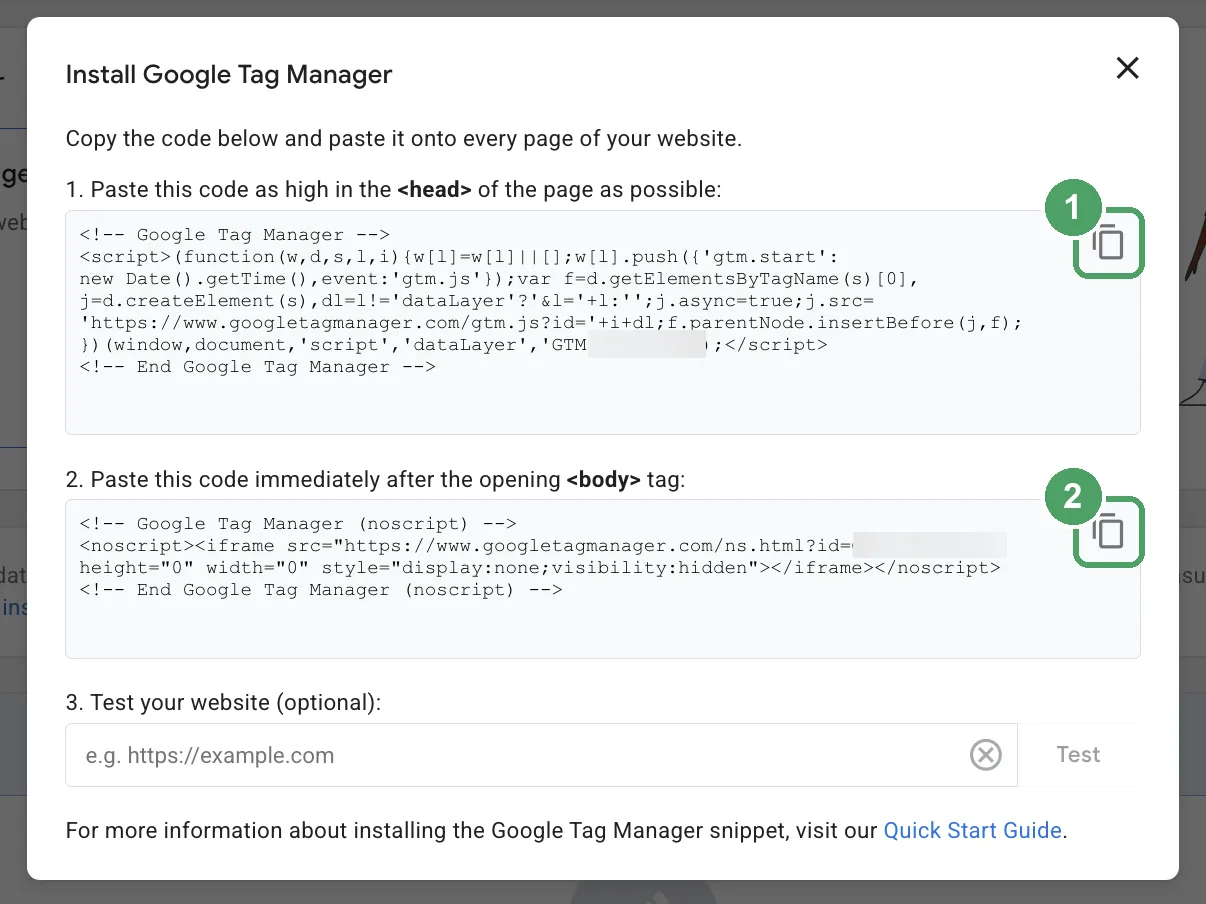
- A box with 2 pieces of code pops up. Keep it open for step 2.
- Note the ID at the top of the page. It looks like
GTM-XXXXXXX.
Step 2: Add the code to your website, once
- Copy the first piece of code and paste it as high as possible in the
<head>of every page. - Copy the second piece and paste it right after the opening
<body>tag. - Publish your website. On WordPress, Wix or Shopify, a Tag Manager plugin or the platform's settings can add both pieces for you, or your developer can do it in 5 minutes.
Want every screen, plus how to share access, track events and add schema? Read my step-by-step guide to installing Google Tag Manager.
Tag Manager is the only tracking code that lives in your website. Everything else in this guide goes inside Tag Manager. Never paste GA4's own code on the site as well, or every visit gets counted twice.
2. Google Analytics 4 (GA4): traffic and conversions
Google Analytics 4 shows you what happens inside your website: how many people visit, how many sessions they start, where they come from, which pages they move between, and which of them become leads. GA4 calls a lead a "key event", its newer name for a conversion. Mark your contact form submission as one, or GA4 counts visitors but never tells you which ones mattered.
Step 1: Create the GA4 property and get your Measurement ID
- Go to analytics.google.com, signed in with the same Google account.
- Click the gear icon (Admin) at the bottom left, then Create, then Property. If you have never used Analytics on this login, it asks you to create an account first: use your business name.
- Fill in the property details: Property name: your domain. Reporting time zone and Currency: your own (mine are India and Indian Rupee).
- Pick your industry and business size, then choose Generate leads as the objective.
- Under Choose a platform, click Web. Enter your website URL and a stream name, and leave Enhanced measurement switched on.
- Click Create stream.
- Copy the Measurement ID at the top right of the stream page. It looks like
G-XXXXXXXXXX.
Google then shows "Install your Google tag" instructions. Close that box. You are installing through Tag Manager instead, and adding that code too would double-count every visit.
Step 2: Add GA4 inside Tag Manager
- In Tag Manager, open your container, go to Tags and click New.
- Choose the tag type Google Tag and paste your
G-XXXXXXXXXXinto the Tag ID field. - In the Triggering box at the bottom, choose Initialization - All Pages. A tag with no trigger never fires.
- Click Save.
- Click the blue Submit button at the top right, type a version name like
Add GA4, then click Publish.
The most common mistake: saving the tag but never publishing it. Saving only stores it in your draft workspace. If the top of Tag Manager says "Workspace Changes: 1" or more, you have not published yet.
Step 3: Confirm it works in 1 minute
- Open your website in an incognito window on your phone, using mobile data.
- In GA4, go to Reports, then Realtime.
- You should see 1 user in the last 30 minutes within about 30 seconds.
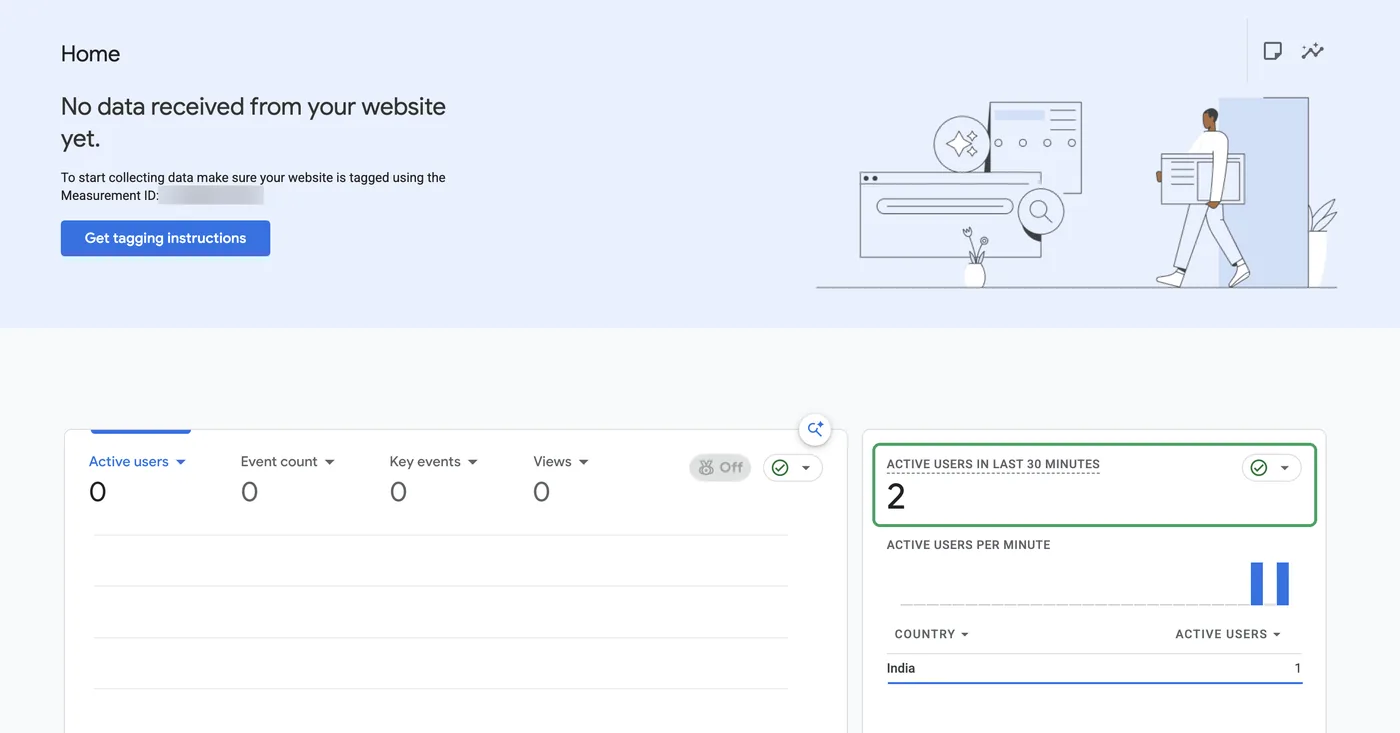
Do not panic at the banners. My GA4 home screen said "No data received from your website yet" while the Realtime card showed 2 live visitors. That banner, and a yellow "Data collection isn't active" one, can lag by up to 48 hours. A blue "connected to multiple Google tags" notice is also normal with a Tag Manager install and does not mean double counting. Do not click Get tagging instructions: adding that code would count every visit twice. Trust Realtime on day one.
3. Google Search Console (GSC): how Google sees your site
Search Console shows what happens outside your website, on Google itself: which searches your pages are shown for (impressions), the position you appear at, and how many people click through. It also flags pages Google cannot index, and it is the only place Google tells you directly that something is wrong with your site.
Search Console offers 2 ways to prove you own your site. I recommend Option A.
| Option A: Domain property (DNS record) | Option B: URL prefix (through Tag Manager) | |
|---|---|---|
| Covers | Your whole domain: with and without www, http and https, and future subdomains | Only the exact address you enter, for example https://shikha.io/ |
| Effort | 1 new record at your domain provider | 3 clicks, no domain provider needed |
| Breaks if | Someone deletes the DNS record | Tag Manager is removed or you lose publish access |
Option A (recommended): Domain property with a DNS record
- Go to search.google.com/search-console, signed in with the same Google account.
- Click the property dropdown at the top left, then Add property. If this is your first property, the add screen opens on its own.
- You will see 2 boxes. Use the left one, "Domain".
- Type your domain with no
https://and nowww, for exampleshikha.io. Click Continue. - A box appears with a TXT record that starts with
google-site-verification=. Click Copy. Leave that box open and do not click Verify yet. - In a new tab, open your domain provider's DNS settings. At Hostinger, that is hPanel, then Domains, then your domain, then DNS / Nameservers.
- In the Manage DNS records form, fill in Type:
TXT, Name:@, TXT value: the code you copied, and leave TTL as it is. Click Add Record. - Go back to the Search Console box and click Verify. You should see a green "Ownership verified" message. If it fails, wait 2 minutes and click Verify again.
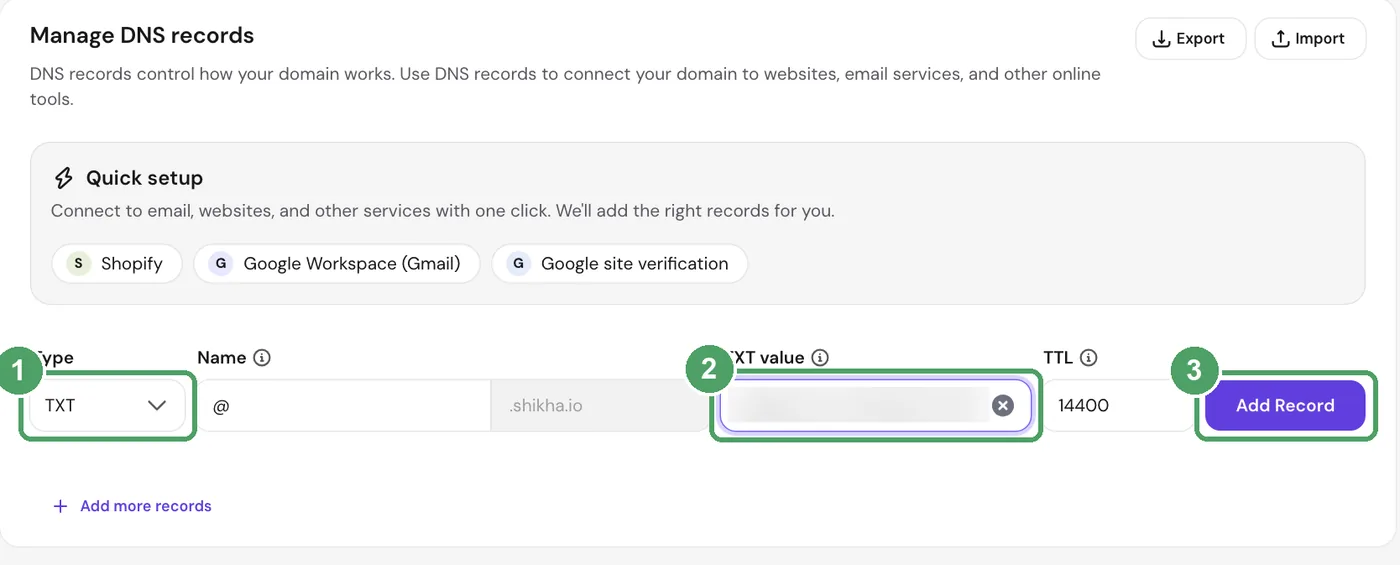
Add the record as a new row. Do not edit any existing TXT record, especially one that starts with v=spf1. A domain can have several TXT records side by side, and that one protects your email. When you are done, you should see 2 TXT rows.
Option B: URL prefix property through Tag Manager
- In Search Console, click Add property and use the right box, "URL prefix".
- Enter your full address, for example
https://shikha.io/, and click Continue. - Under Other verification methods, open Google Tag Manager and click Verify.
Pasting the verification code into a custom tag inside Tag Manager does not work. Google only accepts its built-in Tag Manager method, and only for URL prefix properties.
Then: submit your sitemap
- Click Go to property.
- In the left menu, click Sitemaps.
- Under Add a new sitemap, type
sitemap.xmland click Submit.
If the sitemap status says "Couldn't fetch", leave it until the next day. Do not delete and resubmit it again and again. Meanwhile, paste your homepage into URL inspection at the top, click Test live URL, then Request indexing. Search Console data takes a few days to appear.
4. Bing Webmaster Tools: the search engine behind more AI answers than you think
Most businesses skip Bing because almost nobody they know searches on it. That misses where Bing's index is used now. Microsoft Copilot answers from it, and most 2026 analyses say ChatGPT search relies heavily on it too. If Bing cannot see your pages, those AI answers are less likely to cite you.
Inside, you get the same outside-your-website view as Search Console, for Bing: your top pages, the searches you appear for, clicks and indexing issues. It also has an AI Performance report that shows when Copilot cites your pages, something no Google tool shows you yet.
Option A (recommended): Import from Search Console
- Go to bing.com/webmasters and sign in with your Microsoft, Google or Facebook account. Using the same Google account as Search Console keeps things simple.
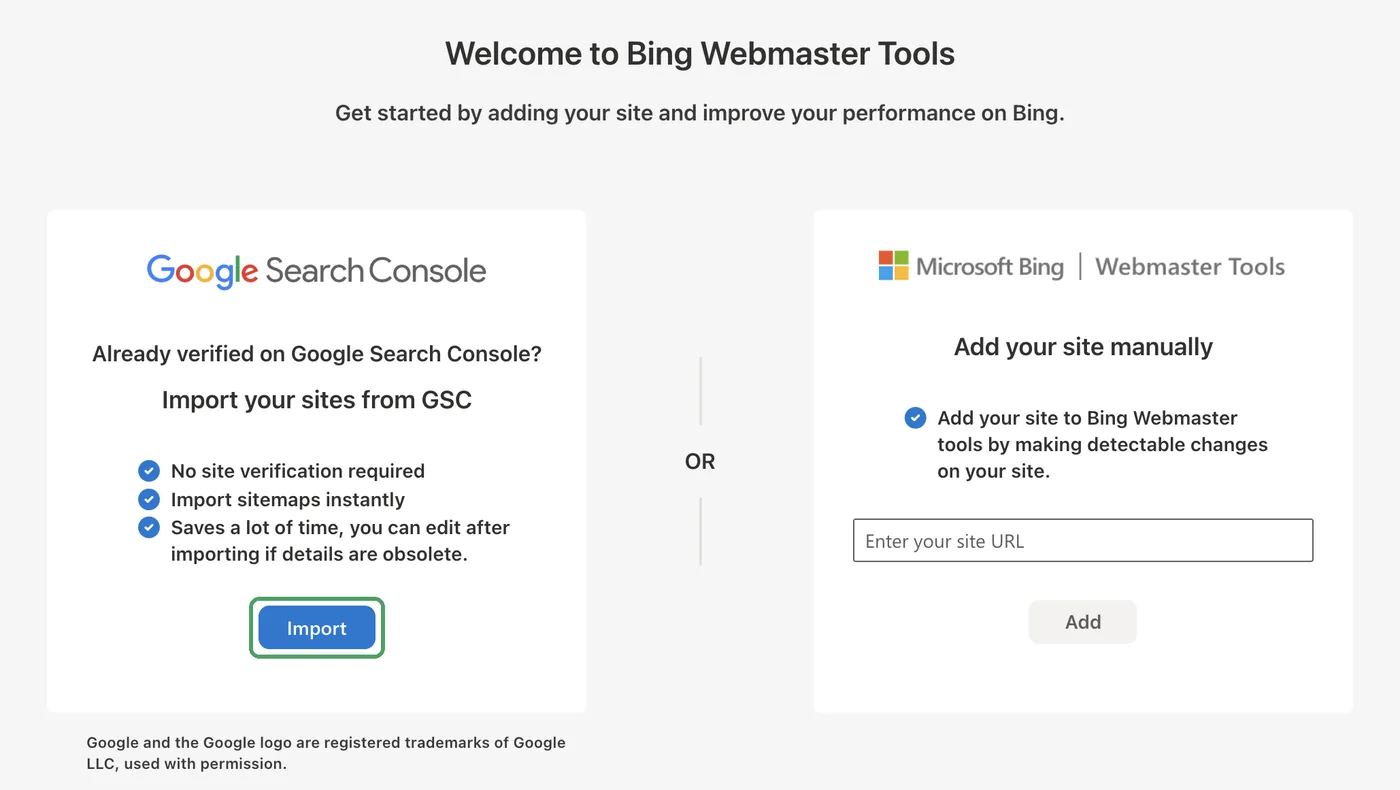
- On the welcome screen, choose Import your sites from GSC (the left option), then click Import.
- Google asks you to allow Bing to read your Search Console data. That is read-only access. Click Allow.
- Tick your website, click Import, then Done.
Option B: Add your site manually
If the import does not show your site, use the right-hand option, Add your site manually, and pick the DNS method. Bing gives you a CNAME record to add at your domain provider, the same way as the Search Console TXT record above.
Then: sitemap and your most important pages
- Go to Sitemaps in the left menu. If
https://yourdomain.com/sitemap.xmlis not listed, click Submit sitemap, paste that URL and submit. - Go to URL Submission and submit your homepage and your 2 or 3 most important pages, so Bing does not wait to find them on its own.
- Once Clarity is installed (tool 5), use the Microsoft Clarity item in the left menu to link the two.
5. Microsoft Clarity: why exactly visitors leave your website
With Clarity, you can watch exactly how people move around your website: where they click, how far they scroll, and how they navigate from page to page. GA4 tells you that 80% of visitors left your services page. Clarity shows you why. It records real visits (with personal details hidden), builds heatmaps, and flags "rage clicks" when someone taps the same thing again and again in frustration.
If Tag Manager is already on your site, Clarity installs in one click, because it detects Tag Manager and adds itself. Then link it to GA4 so the 2 tools share data.
Step 1: Create your Clarity project
- Go to clarity.microsoft.com and sign in with your Google or Microsoft account.
- Click + New project.
- Fill in Name: your domain, Website URL: your full address, and the Site category that fits best.
- Click Add new project.
Step 2, Option A (fastest): Install automatically through Tag Manager
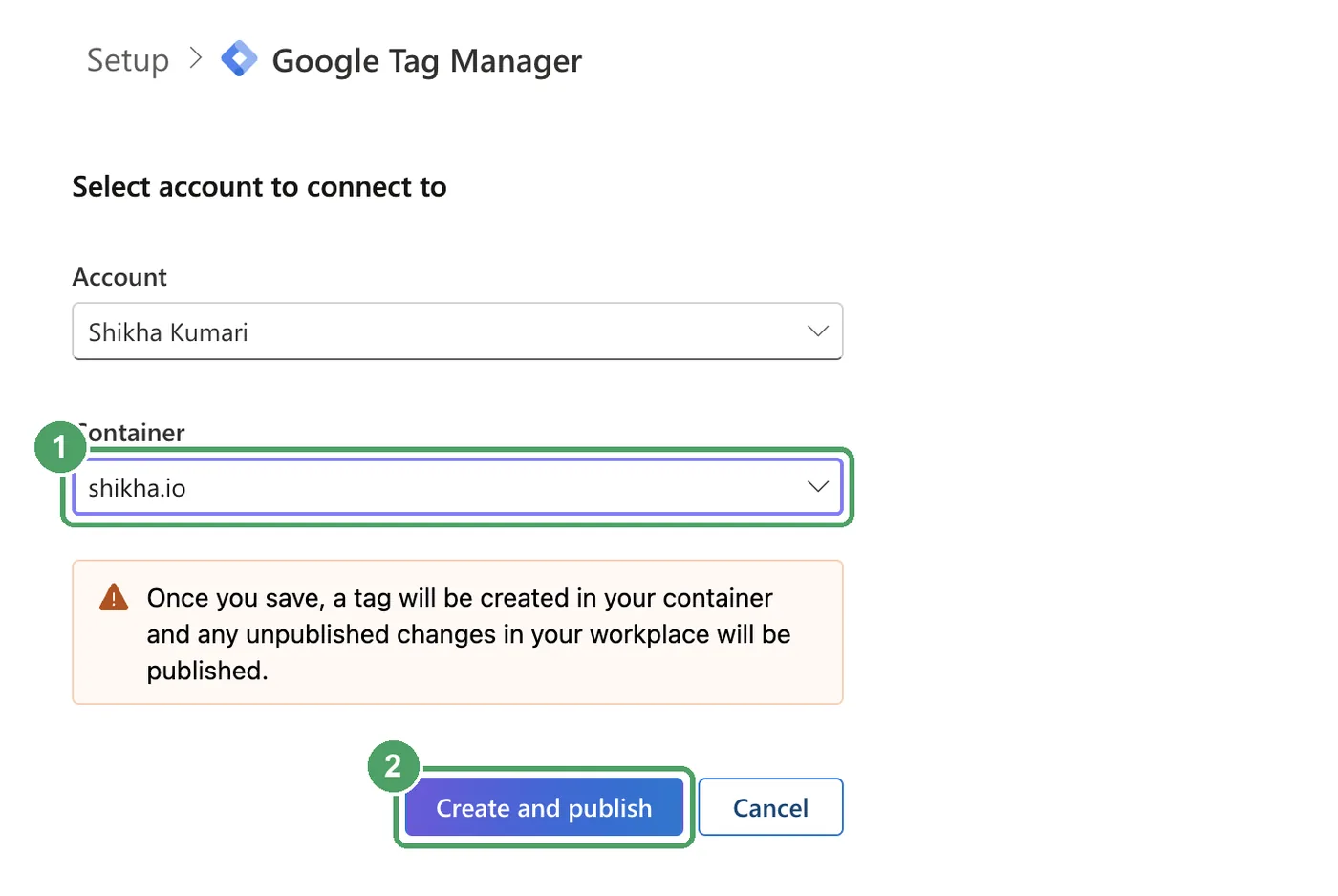
- On Clarity's install screen, choose Install on a third-party platform, then Google Tag Manager. If Tag Manager is already on your site, Clarity detects it and offers this straight away.
- Sign in with the Google account that owns your Tag Manager container and allow access.
- Pick your Tag Manager account and container, then click Create and publish. Clarity creates the tag and publishes it for you.
Step 2, Option B: Install manually inside Tag Manager
- In Clarity, go to Settings, then Overview, and copy the Project ID, a short code like
abc1de2fgh. - In Tag Manager, go to Tags, New, Tag configuration, then open the Community Template Gallery link below the built-in tag types.
- Search for Microsoft Clarity - Official, click Add to workspace, then Add.
- Paste the Project ID and set the trigger to Initialization - All Pages.
- Name the tag
Microsoft Clarityand save. - Click Submit, then Publish, with a version name like "Add Microsoft Clarity".
Step 3: Link Clarity to GA4 and check masking
- In Clarity, go to Settings, then Setup, then Google Analytics integration, click Get started, allow access and choose your GA4 property.
- Under Masking, leave it on Balanced, the default. It hides whatever people type into your forms, so names, emails and phone numbers never appear in recordings.
Recordings usually start showing in Clarity within about 2 hours.
Clarity also has a newer AI Visibility section that shows when AI answers in Copilot cite your pages. It is optional, and worth a look once the basics run.
The install order that saves you time
- Google Tag Manager first, because GA4 and Clarity go inside it.
- GA4 inside Tag Manager, so you never edit site code for it again.
- Search Console by DNS, so every version of your domain is covered.
- Bing by importing from Search Console, which skips a second verification.
- Clarity through Tag Manager, then linked to GA4, which reuses steps 1 and 2.
Done in any other order, you verify your site twice and ask a developer to edit your code twice. Done in this order, the site code changes exactly once.
Is your tracking actually working? The 10-minute check on setup day
The most common problem I find in audits: GA4 is installed, but the lead form was never marked as a key event, so the business has traffic numbers and no lead numbers. Run this check the day you finish, before you trust a single number.
- Tag Manager: click Preview, open your site, and confirm your GA4 and Clarity tags show as fired.
- GA4: open Realtime, visit your site on your phone, and see yourself appear within a minute.
- Your lead form: submit a test enquiry, then check it shows as a key event in Realtime. If it does not, GA4 can count visitors but never leads.
- Search Console: confirm the property says verified and your sitemap status says Success.
- Bing: confirm your site and sitemap imported.
- Clarity: come back 2 hours later and play your own test visit in Recordings.
Privacy and consent: India, the UK and the UAE
All 5 tools are used by millions of sites, but tracking still collects data about real people, so tell visitors about it.
- India: the Digital Personal Data Protection Act, 2023 expects clear notice and consent before you collect personal data. Have a privacy page that names the tools you use.
- UK and EU visitors: use a cookie consent banner, and turn on Google Consent Mode so GA4 respects each visitor's choice.
- UAE: the UAE has its own personal data protection law, so the same notice-and-consent approach applies.
- Clarity: it hides what visitors type into forms by default. Keep masking on its default setting or stricter.
This is the practical setup I use, not legal advice. If you handle health or financial data, check with a lawyer.
What to check every Monday (10 minutes)
Installing the tools is the easy part. The value comes from looking at them. This is the check I run for clients every week.
| Tool | Look at | If it drops or jumps |
|---|---|---|
| Google Analytics 4 | Key events (leads) this week vs last week | A sudden drop to 0 usually means the form or the tracking broke, not that demand vanished |
| Google Search Console | Clicks, and pages under "Not indexed" | A jump in not-indexed pages means Google is struggling with part of your site |
| Bing Webmaster Tools | Clicks and the AI Performance report | Rising AI citations mean Copilot trusts your pages. Falling means a competitor is replacing you |
| Microsoft Clarity | Rage clicks and dead clicks on your top 3 pages | Something on the page looks clickable and is not, or is broken on mobile |
| Google Tag Manager | Nothing weekly. Use Preview after any website change | If tags stop firing after a redesign, every other tool goes quiet |
When free stops being enough
These 5 tools cover most businesses for years. Add a paid tool only when you have a question they cannot answer.
| If you need to... | Consider |
|---|---|
| Ask visitors why they did not buy, with on-page surveys | Hotjar |
| Follow users through a product or app over weeks | Mixpanel or Amplitude |
| Test 2 versions of a page against each other | VWO |
| Keep all analytics data on your own servers | Matomo |
| Show GA4 and Search Console in one client-ready report | Looker Studio (free) |
If none of those sentences describes you, you do not need to pay for tracking yet.
Want me to set these up or read them for your business? Book a 30-minute call.
Frequently asked questions
Which website tracking tools are free?
All 5 in this guide: Google Tag Manager, Google Analytics 4, Google Search Console, Bing Webmaster Tools and Microsoft Clarity. None of them has a paid tier you need for a business website. I set all 5 up on shikha.io for 0 rupees.
When should I install tracking on a new website?
In launch week, ideally before you announce the site. GA4 and Clarity only record visits from the moment they are installed, so the first visitors from your launch post are lost if you add them later. Search Console and Bing can be added any time, but the earlier you verify, the sooner you see which pages Google and Bing have found.
Do I need Google Tag Manager if I have Google Analytics 4?
Not strictly, but it saves you every future developer request. With Tag Manager on the site, adding Clarity, an ads pixel or a new conversion is a few clicks inside Tag Manager instead of a code change. I installed GA4 through Tag Manager for that reason.
Is Microsoft Clarity safe to use on a site with a contact form?
Clarity hides what visitors type into form fields by default, so names, emails and phone numbers never show in recordings. If you have visitors from the UK or EU, use a cookie consent banner, as you would for any analytics tool.
Why set up Bing Webmaster Tools if most people search on Google?
Because Bing is not only Bing. Microsoft Copilot answers from Bing's index, and most 2026 analyses say ChatGPT search relies heavily on it too. If Bing cannot see your pages, those AI answers are less likely to cite them. If Search Console is already verified, Bing can import your site without a second verification.
How do I see visitors coming from ChatGPT, Perplexity or Copilot?
In GA4, open Reports, then Acquisition, then Traffic acquisition, and change the dimension to Session source. Visitors from AI answers show up as chatgpt.com, perplexity.ai or copilot.microsoft.com. It undercounts, because some AI apps strip the source, but it is the clearest free view you have.
What is the difference between a key event and a conversion in GA4?
In 2024 Google renamed conversions in GA4 to key events. A key event is any action you mark as important, like a form submission. The word conversion is now used for key events you share with Google Ads. For a business website without ads, key events are what you set up.
How long until the data shows up?
GA4 Realtime shows visitors within minutes, while its standard reports take 24 to 48 hours. Search Console and Bing usually need a few days to process. Clarity says recordings can take up to 2 hours to appear.
You cannot fix what you cannot see
Every SEO, content or ads decision I make for a client starts with these 5 tools. Without them, you are guessing which page works, which channel brings leads, and why exactly visitors leave.
If you are launching a website this month, put these 5 on your launch checklist next to the domain and the contact form. If your site is already live without them, start with Tag Manager tonight. Once it is in, you will know more about your website than most businesses ever do.
If you want to track the speed of your website, check it in PageSpeed Insights. If you want to know why your website is loading slowly, read how I solved the speed issues on my own site.
Posted in Website Setup
Want these set up and read for you?
In 30 minutes I will check which of the 5 tools your site has, what they are already telling you, and what to fix first. No pitch.
Book a 30-minute call